Run SpotMAX from the GUI
SpotMAX GUI is based on the Cell-ACDC GUI and it can be launched from the
Cell-ACDC launcher. If SpotMAX and Cell-ACDC are correctly installed, run the
command acdc to open the launcher. From the launcher, you can open SpotMAX
GUI by clicking on 4. Launch SpotMAX... button, as shown in the screenshot below.
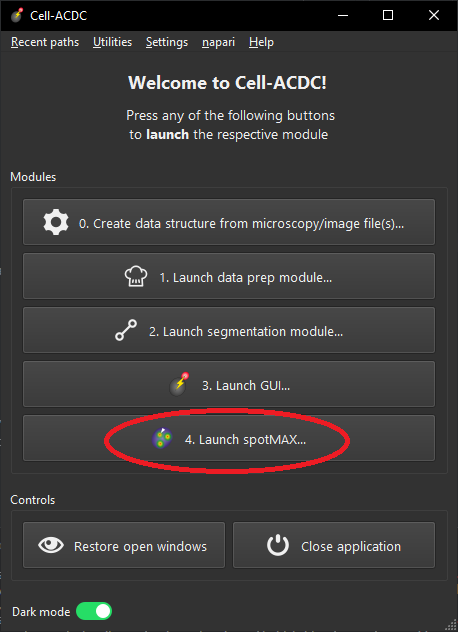
Launching SpotMAX from the Cell-ACDC launcher.
If you already have some image data, you will first need to structure it into
the folder structure required by Cell-ACDC. For a quick test, you can let Cell-ACDC
create a folder structure for you by opening the main Cell-ACDC GUI (see module 3
in the screenshot above). Next, click on the menu File and then
Open Image/Video file... on the top menubar.
Tip
If you plan on using SpotMAX extensively, we recommend always structuring the data into the required structure. See here for more information Create Cell-ACDC folder structure.
If you already have some image data structured into the Cell-ACDC folder structure,
you can click on the menu File and then Load folder... on the top menubar
to load the data into the GUI.
If you don’t have any data yet, you can download some test data from here Example data SpotMAX GUI. Unzip it and load the “Position_16” sub-folder into the GUI as described above. Once you are asked about the channel to load, load the “mNeon” channel (spots channel, i.e., mitochondrial DNA nucleoids).
The test data folder also contains a configuration file for the analysis paramters.
To load the analysis parameters, click on the “Load parameters from previous analysis…”
button on the top-left corner of the GUI. Next, select the
mito_mtDNA_yeast/SpotMAX_test_gui_example_parameters.ini file from the
test data folder. On the warning about the metadata, click on
Load metadata from the parameters file.
If you also have the analysis parameters loaded or set up, you can start the analysis by clicking on the “Run analysis…” button (see screenshot below). Additionally, you can also test and visualize the effect of some of the parameters by clicking on the “Compute” button beside the parameter.
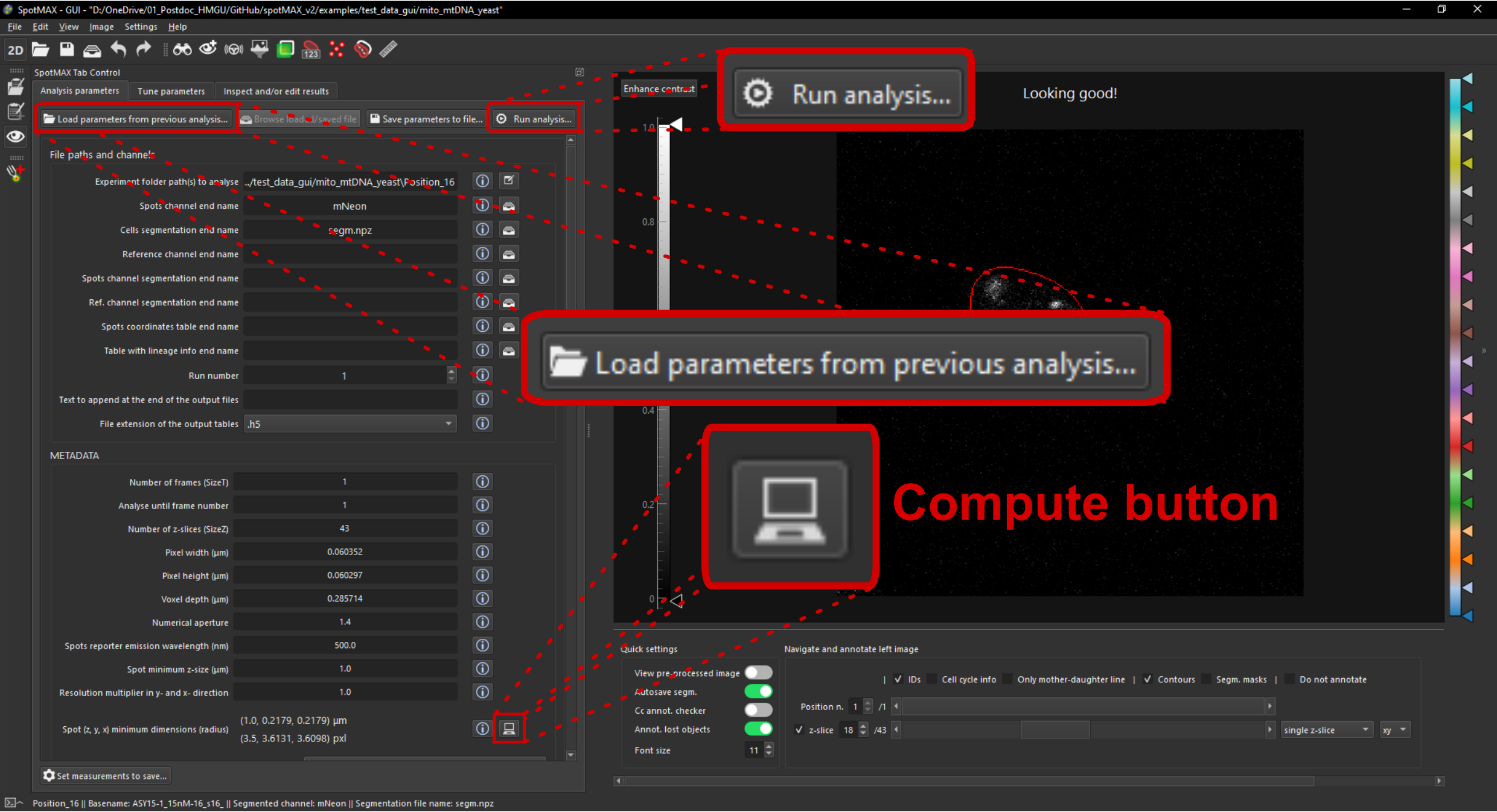
SpotMAX GUI tabs.
When you have data loaded into the GUI you can focus your attention on the three tabs on the top-left corner of the GUI. See the screenshot below.
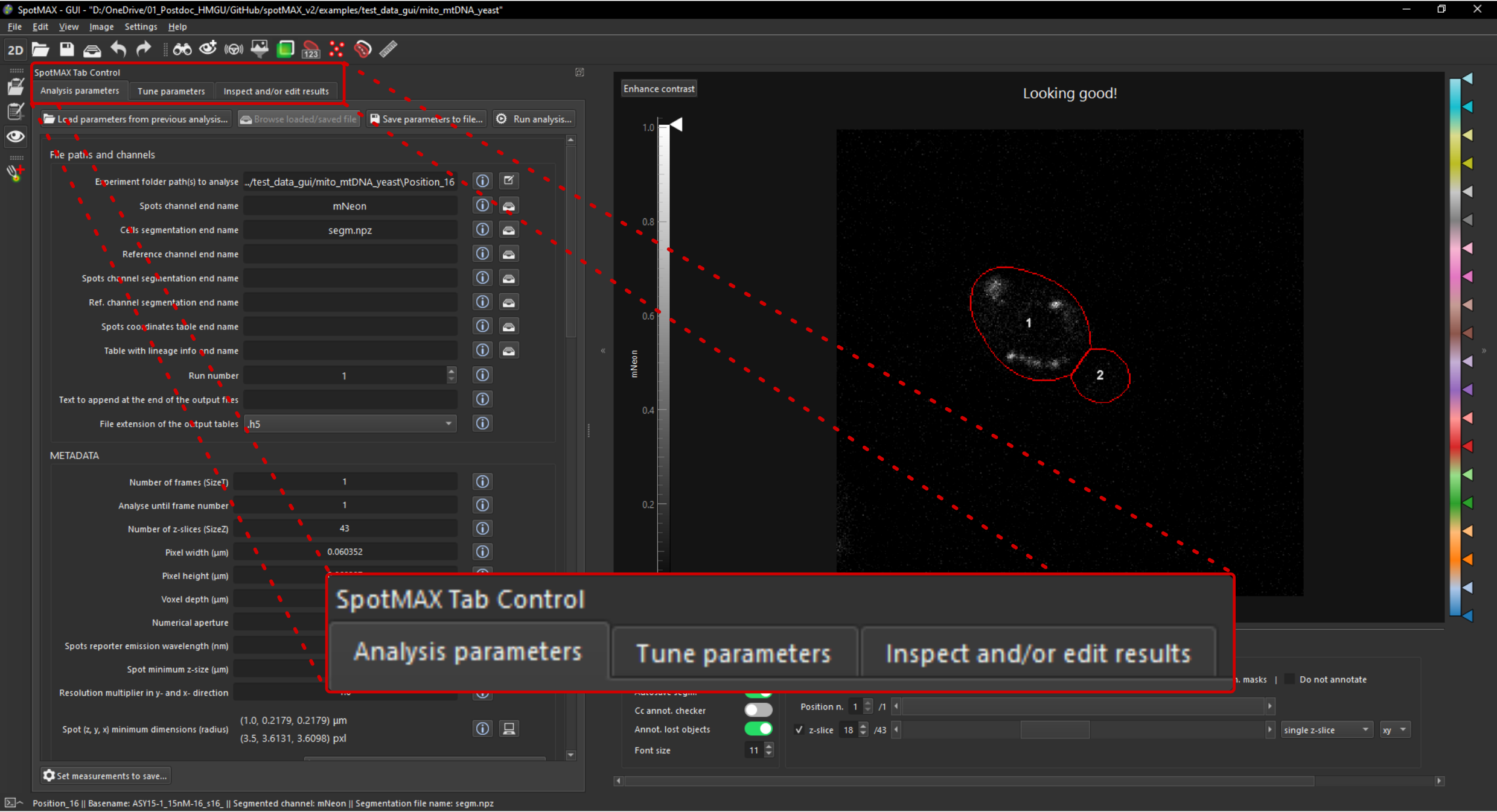
SpotMAX GUI tabs.
For more details about each tab see here: